Docs: PrestaShop
PrestaShop module
Complete backup module for PrestaShop. Backup your database, product images, uploaded files, modules, and themes.
Requirements
- PrestaShop 1.7.0 or higher
- PHP 7.4 or higher
- cURL extension enabled
- LOX API key
Installation
- Download the module
Click the download button above to get the zip file.
- Upload to PrestaShop
Go to
Modules → Module Manager → Upload a module - Configure the module
Click "Configure" and enter your LOX API key.
- Set up backup schedule
Select which components to backup and set your preferred schedule.
Configuration
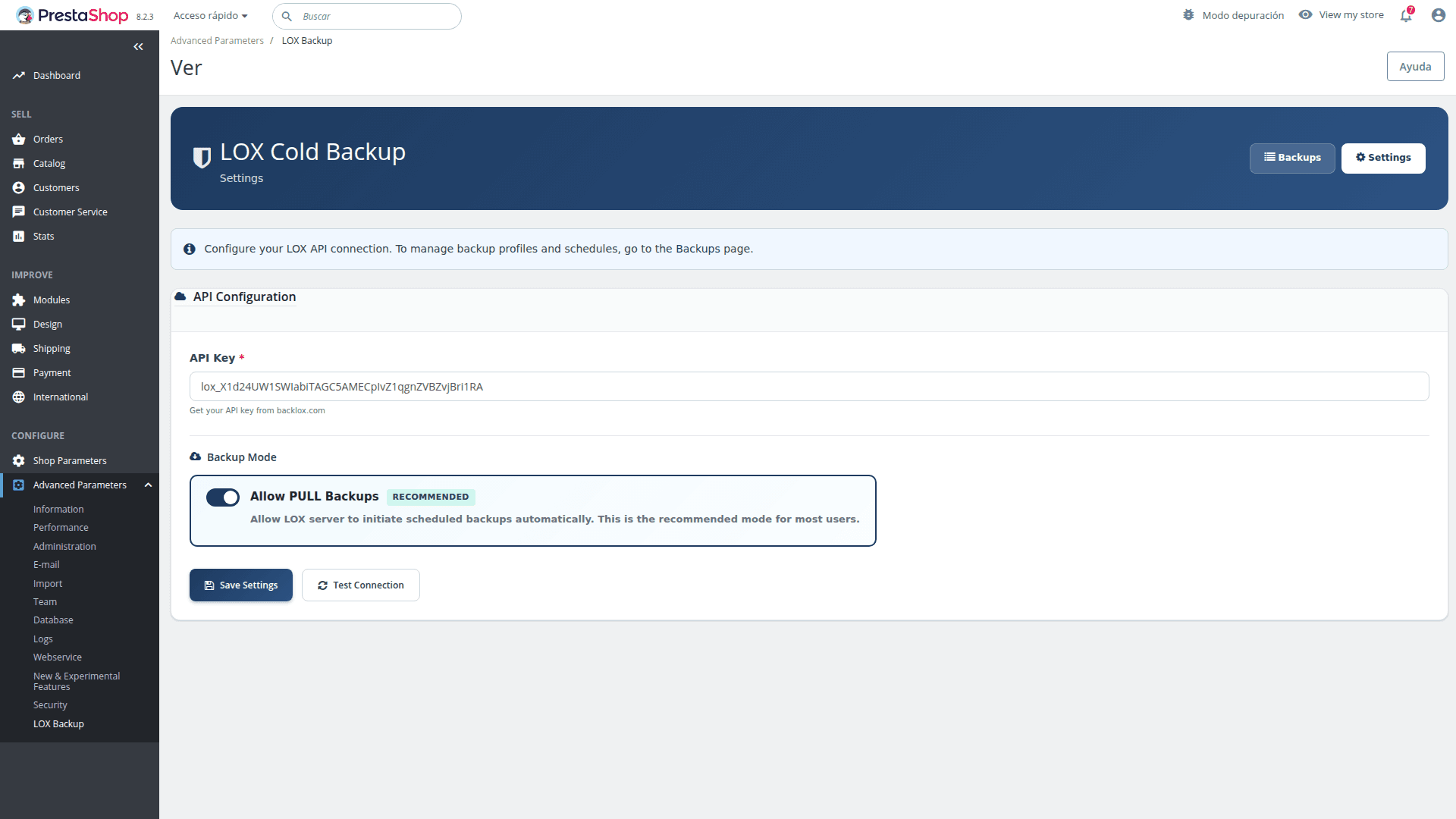
LOX Backup module configuration in PrestaShop admin
Backup components
| Component | Description | Default |
|---|---|---|
| Database | All PrestaShop tables | Enabled |
| Files | Upload and download directories | Enabled |
| Images | Product and category images | Enabled |
| Modules | All installed modules | Disabled |
| Themes | All installed themes | Disabled |
Component-based backup schedules
Configure different backup schedules for each component type:
| Component | Default Schedule | Description |
|---|---|---|
| Catalog | Weekly | Products, categories, attributes |
| Transactional | Daily | Orders, customers, carts |
| Files | Weekly | Uploads, downloads, images |
| Config | Daily | Settings, carriers, zones |
Store data export
The module automatically exports important store configuration as JSON:
- Store configuration (name, email, address, currency)
- Categories structure
- Carriers and shipping settings
- Zones and zone configurations
- Tax rules and groups
- Order states
- Payment module settings
Scheduled backups
The module uses PrestaShop's cron system. You need to set up a cron job that calls:
# Add to your server's crontab
*/15 * * * * curl -s "https://your-store.com/modules/loxbackup/cron.php?token=YOUR_TOKEN"
Alternatively, you can use PrestaShop's built-in cron tasks module if installed.
Manual backup
Click the "Backup Now" button in the module configuration to run a backup immediately. Large stores may take several minutes - the page will show a loading indicator until complete.
Restoring a backup
To restore from a backup:
- Navigate to backup history
Go to the Backups tab in the LOX Backup module.
- Click Restore
Click the "Restore" button next to any completed backup.
- Confirm the restoration
A confirmation dialog will appear. Type
RESTOREto confirm. This safety measure prevents accidental data loss. - Wait for completion
The restoration will begin and you'll be notified when complete.
Warning: Restore overwrites data
Restoring a backup will replace your current store data with the backup contents. This action cannot be undone. Always create a fresh backup before restoring.
Backup structure
Each backup creates a tar.gz archive with this structure:
prestashop-mystore-20240115_030000.tar.gz
├── database.sql           # Full database dump
├── upload/                # Uploaded files
├── download/              # Downloadable products
├── img/                   # Product images (if enabled)
├── modules/               # Modules (if enabled)
├── themes/                # Themes (if enabled)
└── store_data/
    ├── configuration.json
    ├── categories.json
    ├── carriers.json
    ├── zones.json
    ├── tax_rules.json
    ├── order_states.json
    └── payment_modules.json
PULL mode (new in v1.3.0)
New feature: Server-initiated backups
PULL mode allows LOX to initiate backups remotely, providing centralized scheduling, better reliability, and active monitoring of your PrestaShop stores.
Enabling PULL mode
- Go to module configuration
Navigate to Modules → LOX Backup → Configure → PULL tab.
- Enable PULL mode
Toggle "Enable PULL Backups" to generate a secure token.
- Register store in LOX dashboard
Add your store URL and PULL token in the LOX dashboard under CMS Sites.
PULL API endpoints
POST /module/loxbackup/pull?action=backup                 # Trigger backup generation
GET  /module/loxbackup/pull?action=status                  # Get store status and sizes
GET  /module/loxbackup/pull?action=download&token={token}  # Download generated backup (one-time token)
POST /module/loxbackup/pull?action=refresh-token           # Regenerate PULL token (X-API-Key)
POST /module/loxbackup/pull?action=restore                 # Restore backup (if enabled)
All endpoints except the token refresh require the X-LOX-Pull-Token header. When "Allow PULL" is switched off in the module settings, every request is refused with HTTP 403 (pull_disabled), even with a valid token.
Remote restore (new in v1.3.1)
Security feature: Remote restore control
By default, the module blocks restore requests from the LOX platform. This ensures that restores can only be initiated from your PrestaShop admin panel, protecting against unauthorized or accidental data overwrites.
Allow remote restore setting
The "Allow Remote Restore" option in Settings controls whether LOX can initiate restores remotely:
| Setting | Behavior |
|---|---|
| Disabled (Secure) | Remote restore requests are blocked with HTTP 403. Restores must be done manually from PrestaShop admin.This is the default and recommended setting. |
| Enabled | LOX platform can send restore requests to your store. Use with caution - anyone with access to your LOX account can trigger a restore. |
Security warning
When remote restore is enabled, anyone with access to your LOX account can initiate a restore, potentially overwriting your current store data including orders and customers. Only enable this if you understand the risks.
Backup profiles (updated in v1.3.2)
A profile says what the plugin backs up, how often, and how long LOX keeps each copy. Profiles are stored in LOX, so you can define them in two places:
- In the plugin:
Advanced Parameters → LOX Backup → New Profile. You can start from a LOX template and change it before saving. - In the LOX dashboard:
Backups → Profiles → New profile, choosing this site. The site appears there once it has sent LOX a backup.
The plugin only lists and runs the profiles of its own site. Each profile sets:
- What to back up: Database (
database), Files (files), Images (images), Modules (modules), Themes (themes) - Frequency: hourly up to monthly, with a preferred day for weekly and monthly profiles (day 31 = last day of the month)
- Time window and timezone: the hours a scheduled run may start, or any time
- Retention and immutability: how long LOX keeps each copy, and how many of those days it cannot be deleted
- Active: an inactive profile is kept but never runs
Running profiles on schedule
The plugin runs its site's active profiles when they are due, from its scheduled task. Each backup is attached to its profile, and the next run time is saved in LOX. Call the task every hour:
0 * * * * curl -s "https://your-shop.com/modules/loxbackup/cron.php?token=YOUR_TOKEN" > /dev/null 2>&1
The URL with its token is shown in the module's settings. PrestaShop's own cron module keeps running the module's daily full backup; profiles run only through this URL.
Backups that LOX requests from the site (PULL) follow the site's schedule in LOX, not the profiles.
Troubleshooting
Module won't install
Ensure the module folder is named loxbackup (lowercase). Check folder permissions are set to 755.
Backup fails for large image directories
Increase PHP memory_limit and max_execution_time. For very large image libraries, consider disabling image backup and using a separate process.