Docs: Odoo
Odoo module
Complete backup module for Odoo ERP. Backup your PostgreSQL database, filestore attachments, custom addons, and configuration.
Requirements
- Odoo 18.0 or higher
- Python 3.10 or higher
- PostgreSQL 12 or higher
- LOX API key
Installation
- Download and extract the module
Extract the module to your Odoo addons directory:
unzip lox-backup-odoo.zip -d /opt/odoo/addons/
- Update the addons path
Ensure the module directory is in your
odoo.conf:addons_path = /opt/odoo/addons,/opt/odoo/custom-addons
- Update the apps list
Go to
Apps → Update Apps Listin Odoo - Install the module
Search for "LOX Backup" in the Apps menu and click Install.
- Configure your API key
Go to
Settings → General Settingsand scroll down to the LOX Backup section, or navigate toLOX Backup → Configuration → Settings.
Configuration
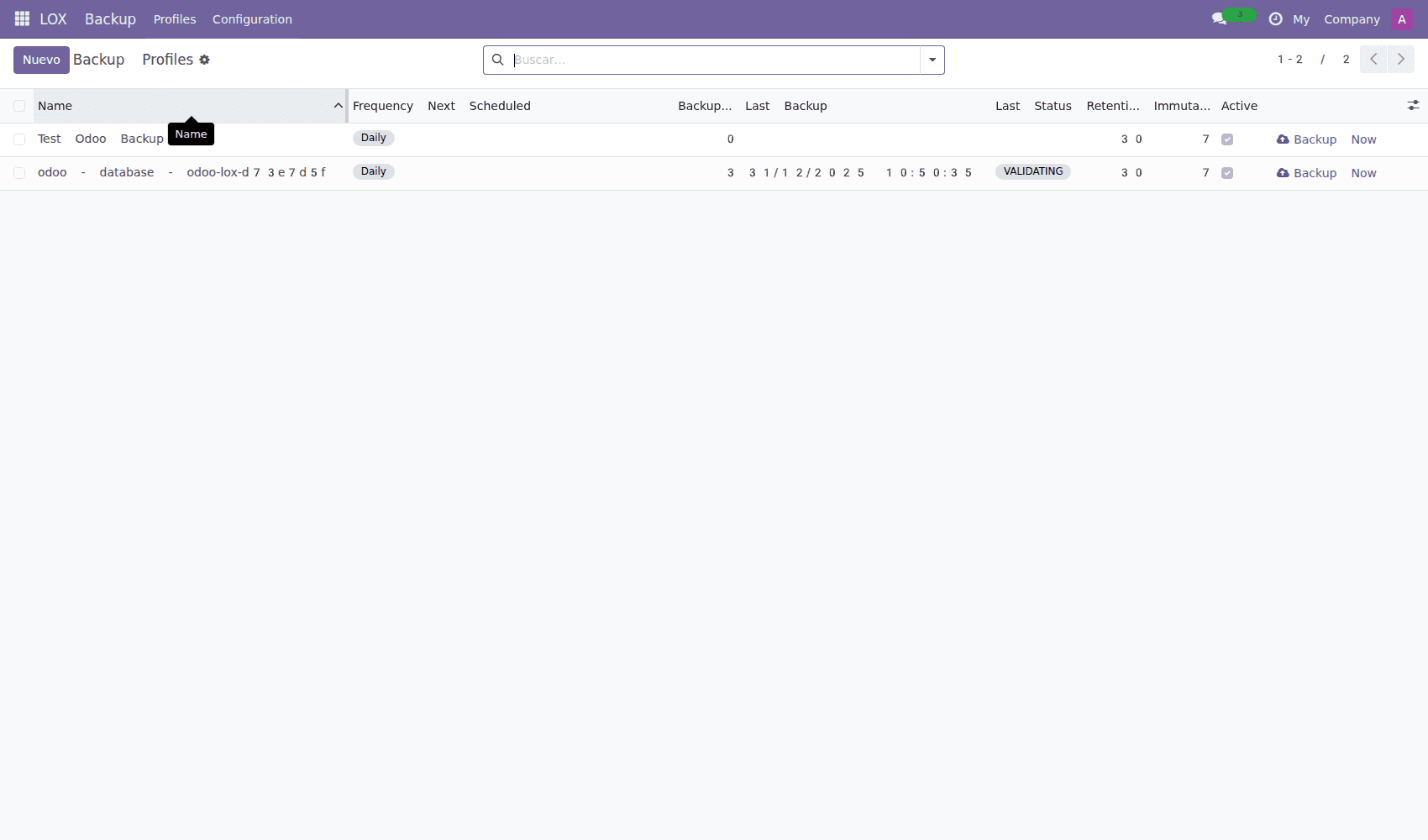
LOX Backup dashboard in Odoo showing backup status and history
API Settings
| Setting | Description |
|---|---|
| API Key | Your LOX API key from backlox.com |
| API URL | Default: https://backlox.com/api (for self-hosted instances) |
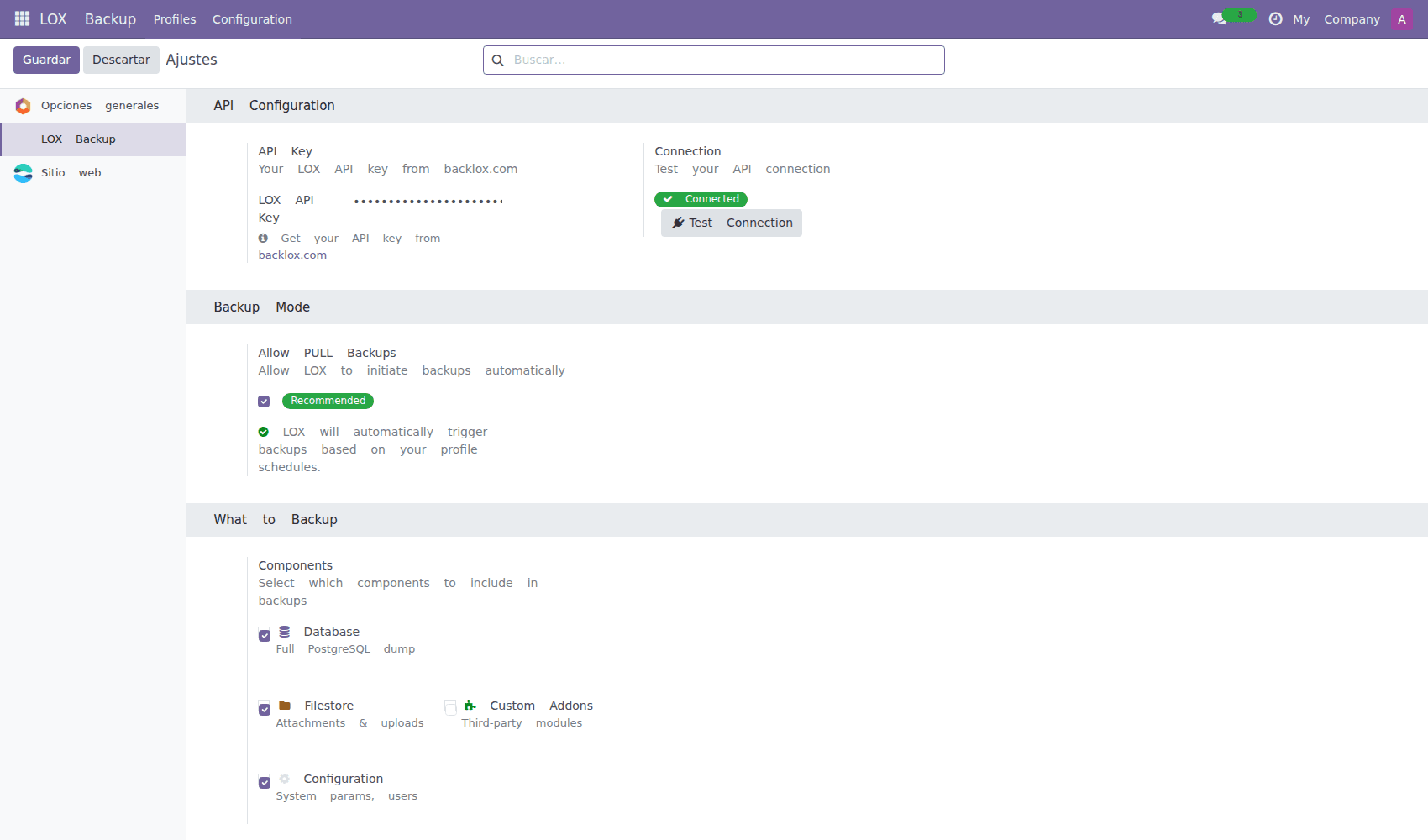
LOX Backup settings page in Odoo system settings
Backup components
| Component | Description | Default |
|---|---|---|
| Database | Full PostgreSQL dump of Odoo database | Enabled |
| Filestore | All attachments and file uploads, sent as a chain of volumes (see Filestore volumes) | Enabled |
| Custom Addons | Your custom/third-party modules | Disabled |
| Configuration | Odoo server configuration export | Enabled |
Exported data
The module automatically exports important configuration as JSON:
- Companies - Company information and settings
- Users - User accounts and groups (passwords excluded)
- Installed Modules - List of installed addons with versions
- System Parameters - ir.config_parameter values
- Sequences - Document numbering sequences
- Mail Servers - Outgoing email server configuration
Schedule options
- Hourly - Run backup every hour (high-traffic systems)
- Twice Daily - Run backup every 12 hours
- Daily - Run backup once per day (recommended)
- Weekly - Run backup once per week
- Disabled - Only manual backups via cron or UI
Scheduled backups
The module uses Odoo's ir.cron system for scheduled backups. You can also trigger backups via a server cron job:
# Add to your server's crontab (runs daily at 3 AM)
0 3 * * * cd /opt/odoo && ./odoo-bin shell -d mydb -c /etc/odoo.conf --no-http <<< "env['lox.backup'].sudo().run_backup()"

# Or using curl with Odoo's JSON-RPC
0 3 * * * curl -X POST https://your-odoo.com/lox_backup/trigger \
  -H "Content-Type: application/json" \
  -d '{"jsonrpc": "2.0", "params": {"token": "YOUR_BACKUP_TOKEN"}}'
Manual backup
You can trigger a backup in multiple ways:
- Via UI: Go to
Settings → LOX Backup → Backup Now - Via Shell: Use the Odoo shell command
- Via API: Call the JSON-RPC endpoint
Shell command
# Using odoo-bin shell
cd /opt/odoo
./odoo-bin shell -d your_database -c /etc/odoo.conf --no-http

# In the shell
>>> env['lox.backup'].sudo().run_backup()
>>> env.cr.commit()
Backup structure
Each backup creates a tar.gz archive with this structure:
odoo-mycompany-20240115_030000.tar.gz
├── database.sql           # Full PostgreSQL dump
├── filestore-volumes.json # Chain and volumes holding the filestore
├── addons/                # Custom addons (if enabled)
│   ├── my_custom_module/
│   └── ...
└── metadata/
    ├── manifest.json      # Backup metadata
    ├── companies.json
    ├── users.json
    ├── modules.json
    ├── parameters.json
    ├── sequences.json
    └── mail_servers.json
Since v18.0.2.2.0 the filestore is not inside this archive: it is uploaded as separate volumes, and the archive carries filestore-volumes.json, which names the chain and lists its volumes.
Filestore volumes (new in v18.0.2.2.0)
Odoo names every attachment after the SHA-1 of its content and never rewrites a file in place, so the module backs the filestore up as a chain:
- Base: every file, packed into uncompressed tar volumes of bounded size. Each volume is its own backup in LOX.
- Incrementals: only the files the chain does not hold yet.
- Verification: each file is hashed while it is read. A file whose content no longer matches its SHA-1 (corrupted, or encrypted in place by ransomware) is left out, so the good copy already in LOX is kept, and the configuration chatter gets an alert.
The list of files comes from the database (ir_attachment), not from walking the filestore, and only one volume sits on local disk at a time. A filestore of hundreds of gigabytes, or one mounted from a bucket, needs about one volume of free temporary space.
Settings
In Settings → LOX Backup → Filestore:
| Setting | Description | Default |
|---|---|---|
| Incremental every (hours) | Hours between incrementals. 0 = only when a backup runs (by hand, by LOX or by the cron URL). | 24 |
| New base every (days) | Days between bases. Bases start during the preferred hour. 0 = only by hand, including the first one. | 30 |
| Volume size (MB) | Size of each volume, 16 to 2900 MB (the Vault takes at most 3 GB per upload). | 1024 |
| Retention class | Frequency the volumes are uploaded as. LOX keeps them for the retention of that class, which must be longer than the days between bases. | Monthly |
The module reads that retention from LOX and says how many bases are kept at a time, or warns when a base would expire before the next one exists. Storage grows with it: with 365-day retention and a base every 30 days, LOX holds about 13 bases. For a large filestore, space the bases out (for example every 180 days with yearly retention) and let the incrementals carry the daily changes.
How it runs
The scheduled action LOX Backup: Filestore Volumes runs every 10 minutes and does a bounded slice of work, saving its position after each volume, so a base of hundreds of gigabytes spreads over as many runs as it needs. With workers (prefork), each run stays underlimit_time_real_cron. If a volume cannot be finished within that limit three times in a row, the run fails with a message: lower the volume size or raise the limit.
Full backups (manual, remote PULL or the cron URL) take the database dump and queue an incremental right after it. A "Filestore only" backup just queues an incremental. Follow chains, volumes and runs inLOX Backup → Configuration → Filestore.
# Scratch space for the volume being built (default: the system temp dir).
# Never inside the filestore: on a mounted bucket it would be uploaded to it.
Settings > Technical > System Parameters: lox_backup.workdir = /var/tmp
Restoring the filestore
Open a chain in LOX Backup → Configuration → Filestore and use Restore missing or damaged files. Every volume of the chain is downloaded in turn; files that are missing or whose content no longer matches their name are written back, healthy files are not touched and nothing is moved or deleted. It also works on a new server with an empty filestore. A remote restore of a full backup queues the same job for the chain named in its filestore-volumes.json.
By hand, extract every volume of the chain into the filestore directory:
for v in odoo-mydb-filestore-*.tar; do
  tar -xf "$v" --strip-components=1 --exclude=lox-volume.json -C /var/lib/odoo/filestore/mydb
done
Multi-database support
For Odoo installations with multiple databases, the module can be configured per-database or globally:
Per-database configuration
Install the module in each database and configure API keys separately. Each database will have independent backup schedules.
Global configuration
Set lox_api_key in odoo.conf to use the same API key for all databases.
Restoring from backup
The module provides an in-app restore wizard with text confirmation for safety:
- Navigate to backup logs
Go to Settings → LOX Backup → Backup Logs.
- Click Restore on the backup
Click the "Request Restore" button next to any completed backup.
- Confirm the restoration
Type
RESTOREin the confirmation dialog to proceed. This safety measure prevents accidental data loss.
Warning: Restore overwrites data
Restoring a backup will replace your current Odoo data with the backup contents. This action cannot be undone. Always create a fresh backup before restoring.
Manual restore via CLI
- Download and extract the backup
Get the backup from the LOX dashboard and extract the tar.gz file.
tar -xzf odoo-mycompany-20240115_030000.tar.gz
- Restore the database
# Drop existing database (if replacing)
dropdb your_database

# Create new database
createdb your_database

# Restore from backup
psql your_database < database.sql
- Restore the filestore
# Backups since v18.0.2.2.0: the filestore is in volumes
# (see "Filestore volumes" above)
for v in odoo-your_database-filestore-*.tar; do
  tar -xf "$v" --strip-components=1 --exclude=lox-volume.json -C /var/lib/odoo/filestore/your_database
done

# Older backups: copy the filestore/ directory of the archive
cp -r filestore/* /var/lib/odoo/filestore/your_database/
- Restore custom addons (if included)
cp -r addons/* /opt/odoo/custom-addons/
- Restart Odoo
sudo systemctl restart odoo
Odoo.sh integration
For Odoo.sh hosted instances, you can integrate LOX Backup using a scheduled action:
Odoo.sh note
Odoo.sh provides its own backup system. LOX Backup can be used as an additional off-site backup solution for disaster recovery or compliance requirements.
PULL mode (new in v18.0.1.3.0)
New feature: Server-initiated backups
PULL mode allows LOX to initiate backups remotely, providing centralized scheduling, better reliability, and active monitoring of your Odoo instances.
Enabling PULL mode
- Go to LOX Backup settings
Navigate to Settings → LOX Backup → PULL Configuration.
- Enable PULL mode
Toggle "Enable PULL Backups" to generate a secure token.
- Register instance in LOX dashboard
Add your Odoo URL and PULL token in the LOX dashboard under CMS Sites.
PULL API endpoints
POST /lox/pull/backup         # Trigger backup generation
GET  /lox/pull/status         # Get instance status and sizes
GET  /lox/pull/download/{token}  # Download generated backup (one-time token)
POST /lox/pull/token/refresh  # Regenerate PULL token (X-API-Key)
POST /lox/pull/restore        # Restore backup (if enabled)
These are plain HTTP + JSON endpoints (not Odoo JSON-RPC): send a bare JSON body and read a bare JSON answer. All of them except the token refresh require the X-LOX-Pull-Token header, and when "Allow PULL" is switched off in Settings → LOX Backup every request is refused with HTTP 403 (pull_disabled).
Remote restore (new in v18.0.2.1.0)
Security feature: Remote restore control
By default, the module blocks restore requests from the LOX platform. This ensures that restores can only be initiated from your Odoo admin panel, protecting against unauthorized or accidental data overwrites.
Allow remote restore setting
The "Allow Remote Restore" option in Settings → LOX Backup controls whether LOX can initiate restores remotely:
| Setting | Behavior |
|---|---|
| Disabled (Secure) | Remote restore requests are blocked with HTTP 403. Restores must be done manually from Odoo Settings or via CLI.This is the default and recommended setting. |
| Enabled | LOX platform can send restore requests to your Odoo instance. Use with caution - anyone with access to your LOX account can trigger a restore. |
Security warning
When remote restore is enabled, anyone with access to your LOX account can initiate a restore of your Odoo filestore (attachments, documents). For backups with filestore volumes, it writes back missing or damaged files and leaves the rest alone. For older backups, it replaces the filestore and keeps the previous one next to it as <db>.backup.<timestamp>. Only enable this if you understand the risks.
Database restores are manual
The module never replays the SQL dump into the database Odoo is running on. A remote restore reports the database as skipped (a database-only request answers database_restore_not_supported); download the backup and restore database.sql withpsql or the Odoo database manager while the instance is stopped.
Backup profiles (updated in v18.0.2.3.0)
A profile says what the plugin backs up, how often, and how long LOX keeps each copy. Profiles are stored in LOX, so you can define them in two places:
- In the plugin:
LOX Backup → Create Profile. You can start from a LOX template and change it before saving. - In the LOX dashboard:
Backups → Profiles → New profile, choosing this site. The site appears there once it has sent LOX a backup.
The plugin only lists and runs the profiles of its own site. Each profile sets:
- What to back up: Database (
database), Filestore (filestore), Configuration (config) - Frequency: hourly up to monthly, with a preferred day for weekly and monthly profiles (day 31 = last day of the month)
- Time window and timezone: the hours a scheduled run may start, or any time
- Retention and immutability: how long LOX keeps each copy, and how many of those days it cannot be deleted
- Active: an inactive profile is kept but never runs
Running profiles on schedule
The plugin runs its site's active profiles when they are due, from its scheduled task. Each backup is attached to its profile, and the next run time is saved in LOX. Call the task every hour:
0 * * * * curl -s "https://your-odoo.com/lox_backup/cron?token=YOUR_TOKEN" > /dev/null 2>&1
The URL with its token is shown in Settings → LOX Backup. A profile with the filestore queues an incremental of the filestore volumes (see Filestore volumes).
Backups that LOX requests from the site (PULL) follow the site's schedule in LOX, not the profiles.
Troubleshooting
Module not appearing in apps
Ensure the module folder is named lox_backup (with underscore) and is in a directory listed in addons_path. Run "Update Apps List" in developer mode.
Database backup fails
The Odoo user must have permissions to run pg_dump. Verify with pg_dump --version as the Odoo user. For large databases, increase limit_time_real in odoo.conf.
The filestore base does not advance
Each run must finish at least one volume within limit_time_real_cron. Lower the volume size in Settings, or raise the limit for the cron workers. Check that the temporary directory (or lox_backup.workdir) has room for one volume, and, on a filestore mounted from a bucket, that the mount's local cache is not filling the disk.
Scheduled backups not running
Ensure Odoo's cron is running. Check that --max-cron-threads is not set to 0. View scheduled actions at Settings → Technical → Scheduled Actions.
Security considerations
- API Key Storage: The API key is stored encrypted in the database using Odoo's
ir.config_parametersystem. - Access Control: Only users in the "LOX Backup / Administrator" group can configure settings and trigger manual backups.
- Database Passwords: User passwords are NOT included in the backup metadata. They remain only in the encrypted database dump.
- Transport Security: All data is transmitted over HTTPS with TLS 1.2+.